
6 Slack Tips for Efficient Tech Teams in 2026
Six practical Slack tips for tech teams in 2026 to reduce context switching, process notifications faster, and keep communication actionable.
Slack gets noisy fast when you juggle code reviews, incidents, deploys, and team coordination. If you need better GitHub PR notifications in Slack, start there. These Slack tips for tech teams help you keep focus, process important notifications faster, and reduce context switching in 2026.
1) Use Unread as your message triage view
Enable the Unreads tab in your sidebar. It is hidden by default for many users, but once enabled it becomes one of the best ways to triage Slack.
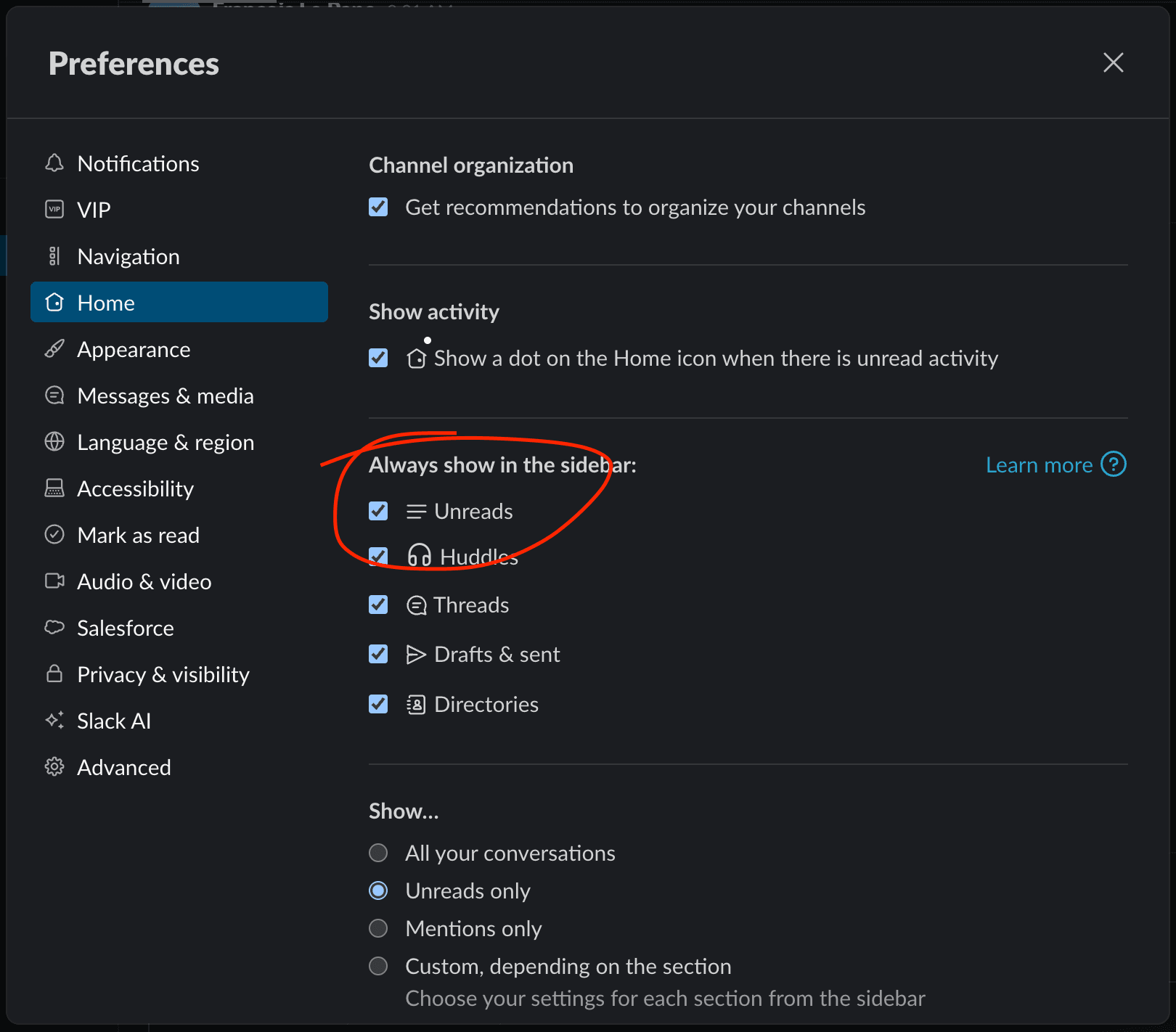
- Open Preferences -> Home and check Unreads in Always show in the sidebar.
- The Unreads view shows all unread messages in one place.
- You can read DMs there without automatically losing your unread queue.
- You can mark entire channels as read in one click when they are not relevant.
- You can mark all messages as read in one click when you finish triage.
- It helps you clear low-priority noise quickly.
- It lets you keep important messages unread while still reviewing them.
- You get better overview and less "message disappeared into the void" stress.
2) Use Cmd + K for fast navigation
Hit Cmd + K to jump directly to channels, DMs, and threads that matter right now.
Cmd + K then Enter usually takes you straight to the latest item you need to handle.- Treat it like command palette navigation for communication.
- Use it to move from one priority thread to another in seconds.
- It is much faster than scrolling and searching visually.
3) Switch to Compact theme if you prefer dense context (or if you are an IRC nostalgic)
If you like an old-school IRC feel, Slack's Compact message display puts more information on screen.
You can find it in Preferences -> Messages & media -> Theme -> Clean | Compact.
- Great for high-volume channels and incident rooms.
- Helps you scan faster when you are catching up.
- Reduces scrolling during long technical discussions.
4) Add a custom emoji for recurring engineering reactions
A few team-specific emojis can speed up communication for common states (approved, blocked, investigating, shipped).
- Reactions become faster than writing the same short message every time.
- They also create lightweight shared team vocabulary.
Need an image in the right format? Use AtelierMojis to resize any image to Slack's 128x128 requirement in the browser. Then follow the step-by-step guide to adding a custom emoji in Slack.
5) Press Arrow Up to edit your last message
Press Arrow Up in the message box to edit your latest message quickly.
- Fixes typos and clarifies details without posting a follow-up correction.
- Keeps technical threads cleaner and easier to read later.
- Especially useful when sharing commands, links, or incident updates.
6) Use GitNotifier for Slack notifications from your Git workflow
GitNotifier sends Slack pull request notifications to your DM inbox so you can review and merge faster without constantly bouncing back to GitHub.
- Keep PR updates in your inbox-style Slack flow from notifications and App Home.
- Act directly from Slack with reply, react, and merge actions (see actions in Slack).
- Spend less time context-switching between tools during review cycles. See how to reduce PR review time with Slack alerts.
Read more
View all articles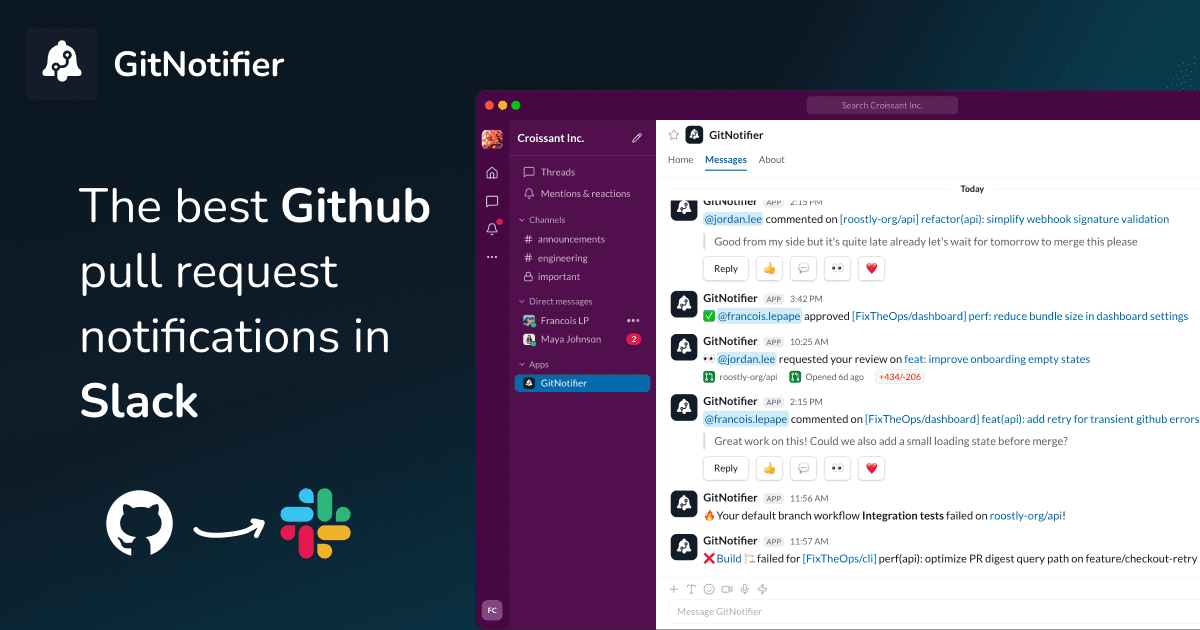
How to Get GitHub Notifications in Slack (3 Ways)
Learn how to get GitHub notifications in Slack three ways: the native GitHub Slack app, GitHub Actions webhooks, and personal PR alerts with GitNotifier.
Slack Notifications for GitHub: Every Option Compared (2026)
Compare every way to get Slack notifications for GitHub in 2026: the native app, GitHub Actions webhooks, Axolo, and GitNotifier, with honest tradeoffs for each.
GitHub Pull Request Digest for Slack: A Daily PR Recap That Covers Every Repo
Get a daily GitHub pull request digest in Slack: one scheduled recap of every PR waiting on your review across all your repositories, not just five.