
How to Add Custom Emoji in Slack (Step-by-Step)
The exact click path to add custom emoji in Slack on desktop and mobile, upload requirements (size, format, GIF frames), and how to remove one later.
Want faster reactions than typing the same message again and again? Custom emoji are a lightweight way to standardize team signals like approved, blocked, shipping, and on it.
Slack's official guide is here: Add custom emoji and aliases to your workspace.
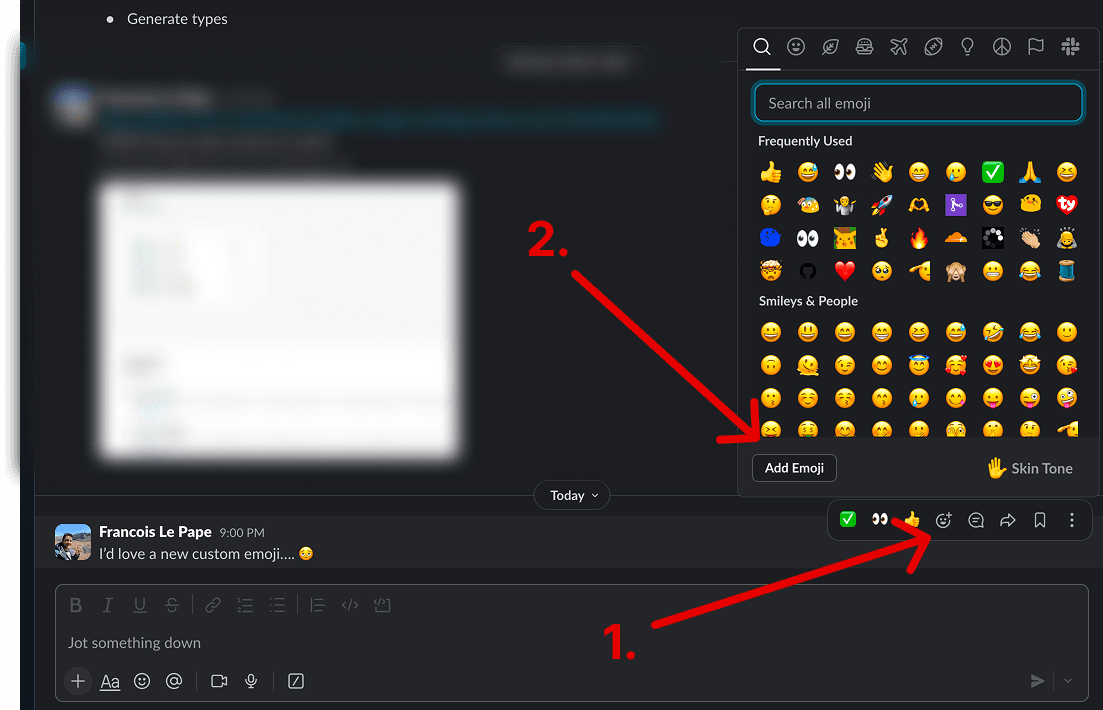
Step 1: Open the emoji menu from the message field
- In any channel or DM, click the smiley icon in the message box.
- Click the Add Emoji button.
- Choose Upload Image.
Step 2: Upload, name, and save
- Select your image file.
- Give your emoji a short, clear name (for example:
ship-it). - Click Save.
Upload best practices
Per Slack's recommendations:
- Square images under 128KB work best.
- Transparent backgrounds usually look cleaner in dark and light themes.
- Supported formats: JPG, PNG, and GIF.
- GIFs can include up to 50 frames.
Adding an emoji from the Slack mobile app
- Tap the emoji icon in the message field, then tap the smiley in the top row.
- Tap Add Custom Emoji, then choose a photo from your library or take a new one.
- Crop the image, give it a name, and tap Save.
The click path is the same idea as desktop: open the emoji picker, choose the upload option, name it, save it. If the source image is not already square and under 128KB, upload it from a computer instead so you can resize it first.
Removing a custom emoji
Open your workspace's emoji management page (see the emoji detective guide for the exact URL), find the emoji in the list, and click the trash icon next to it. Only workspace owners and admins can remove emoji added by other people.
Need to create the emoji first?
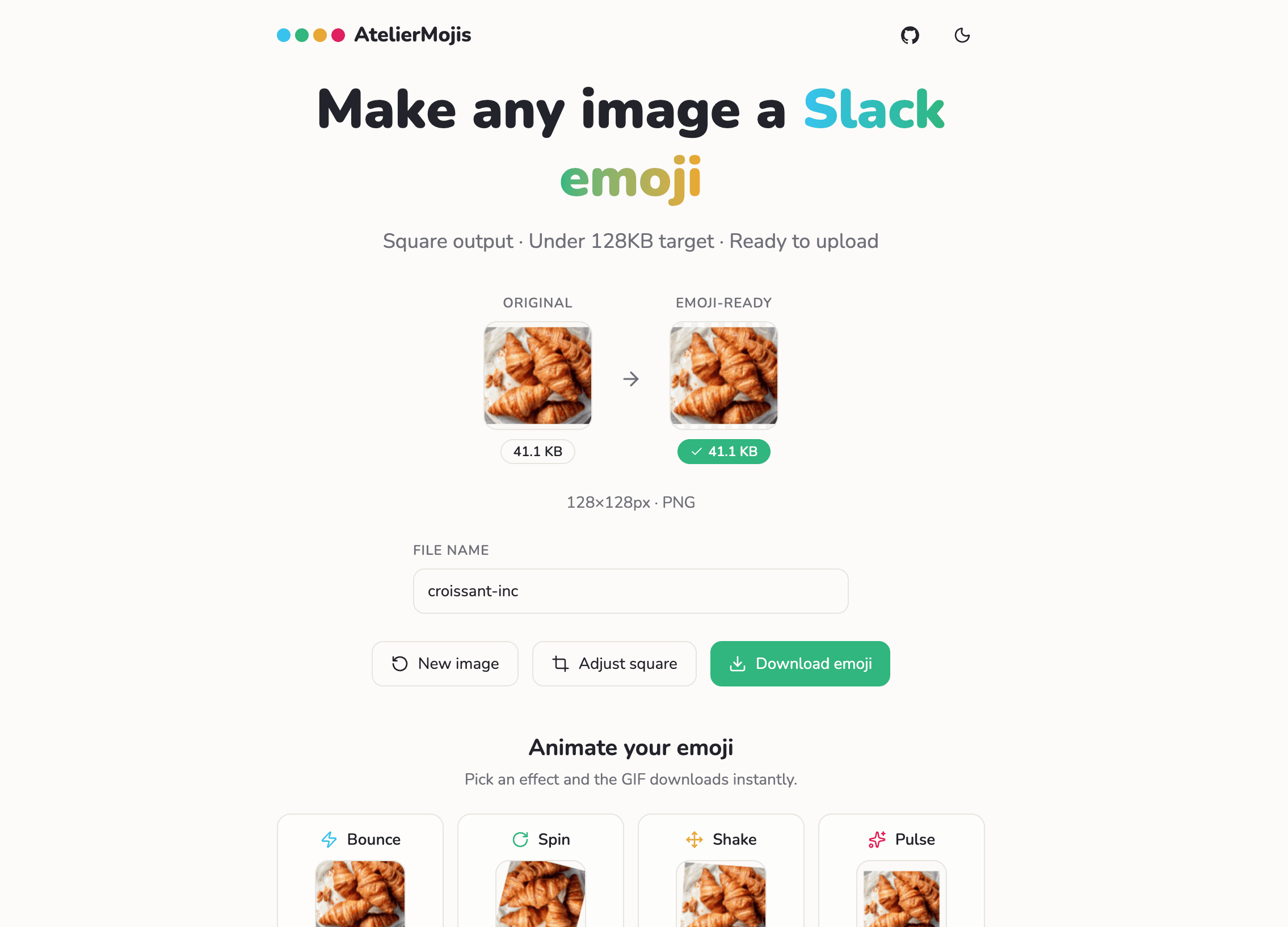
If your image is not already a square, under 128KB, and in the right format, you will need to resize and compress it before uploading. Doing that across three separate tools is slow. AtelierMojis handles all of it in one step, right in your browser: crop, resize to 128x128, compress under the 128KB limit, and download. You can also add animated effects like Spin, Bounce, or Shake.
Nothing you drop into it ever leaves your browser. It is free and open source.
Read more: Introducing AtelierMojis: An Open Source Slack Emoji Maker
Generate an emoji from a teammate's profile picture
If you use GitNotifier, you can generate a Slack emoji directly from a teammate's profile picture with one slash command. Ask your colleague first, then run:
/gitnotifier emoji @colleagueGitNotifier will process their profile picture and give you a ready-to-upload emoji. See the slash command docs for details.
Read more
View all articles
Free Slack Emoji Maker: AtelierMojis
Free Slack emoji maker: drop in any image, get a Slack-ready 128x128 PNG in seconds. No upload, no account. AtelierMojis runs entirely in your browser.
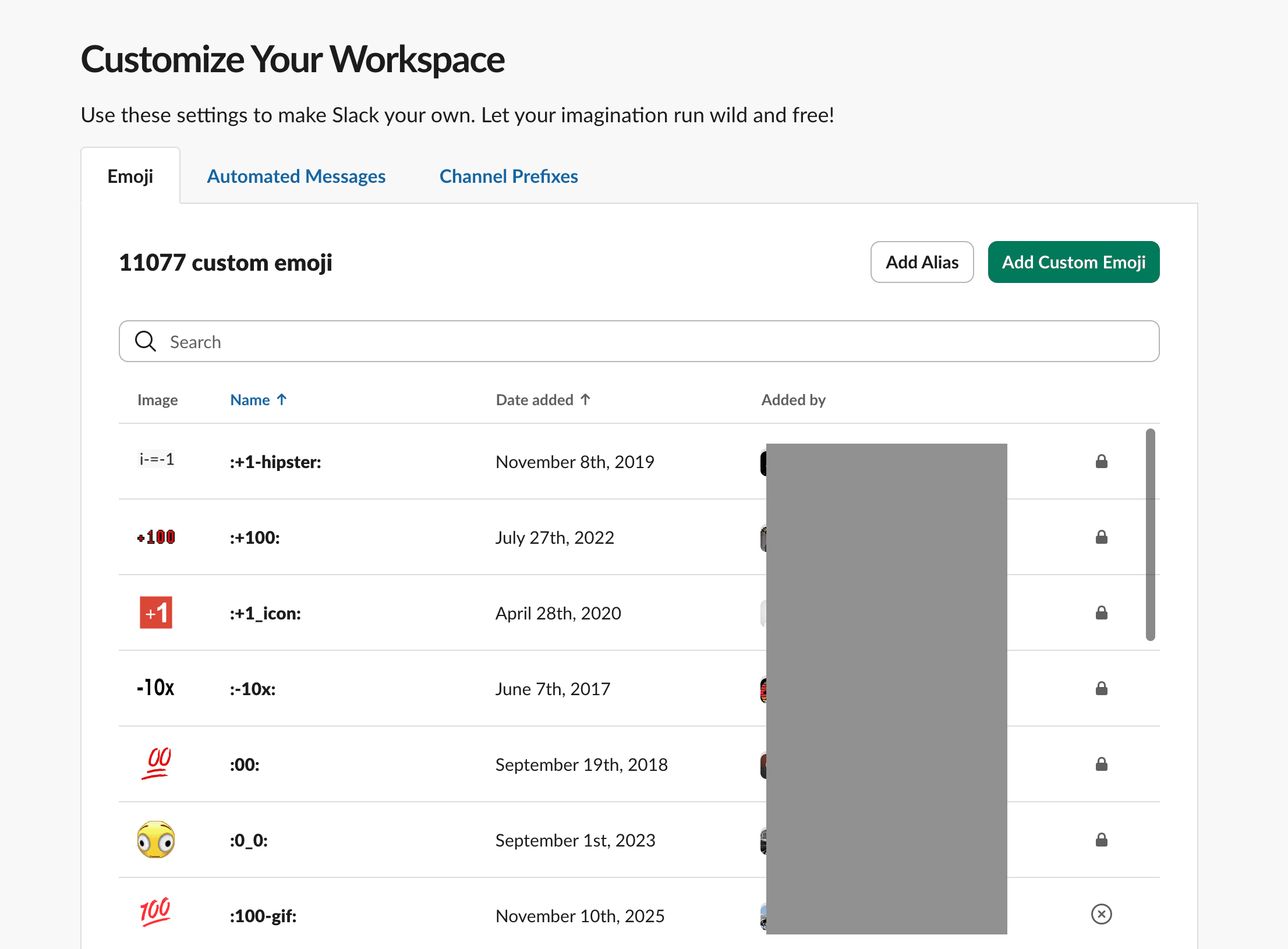
How to See Who Added Custom Emojis in Slack
A walkthrough to open Slack's emoji management page and quickly check which custom emojis exist, who added them, and when they were added.
6 Slack Tips for Efficient Tech Teams in 2026
Six practical Slack tips for tech teams in 2026 to reduce context switching, process notifications faster, and keep communication actionable.